 CabinetOS
Remote Play
Play the console from a phone, tablet or computer with Moonlight. The whole console streams: Home, the Library, every game. The device’s controller (or its touch controls) becomes player one while it is connected.
Remote Play is off to start with, and nothing listens on the network until you turn it on.
Turn it on
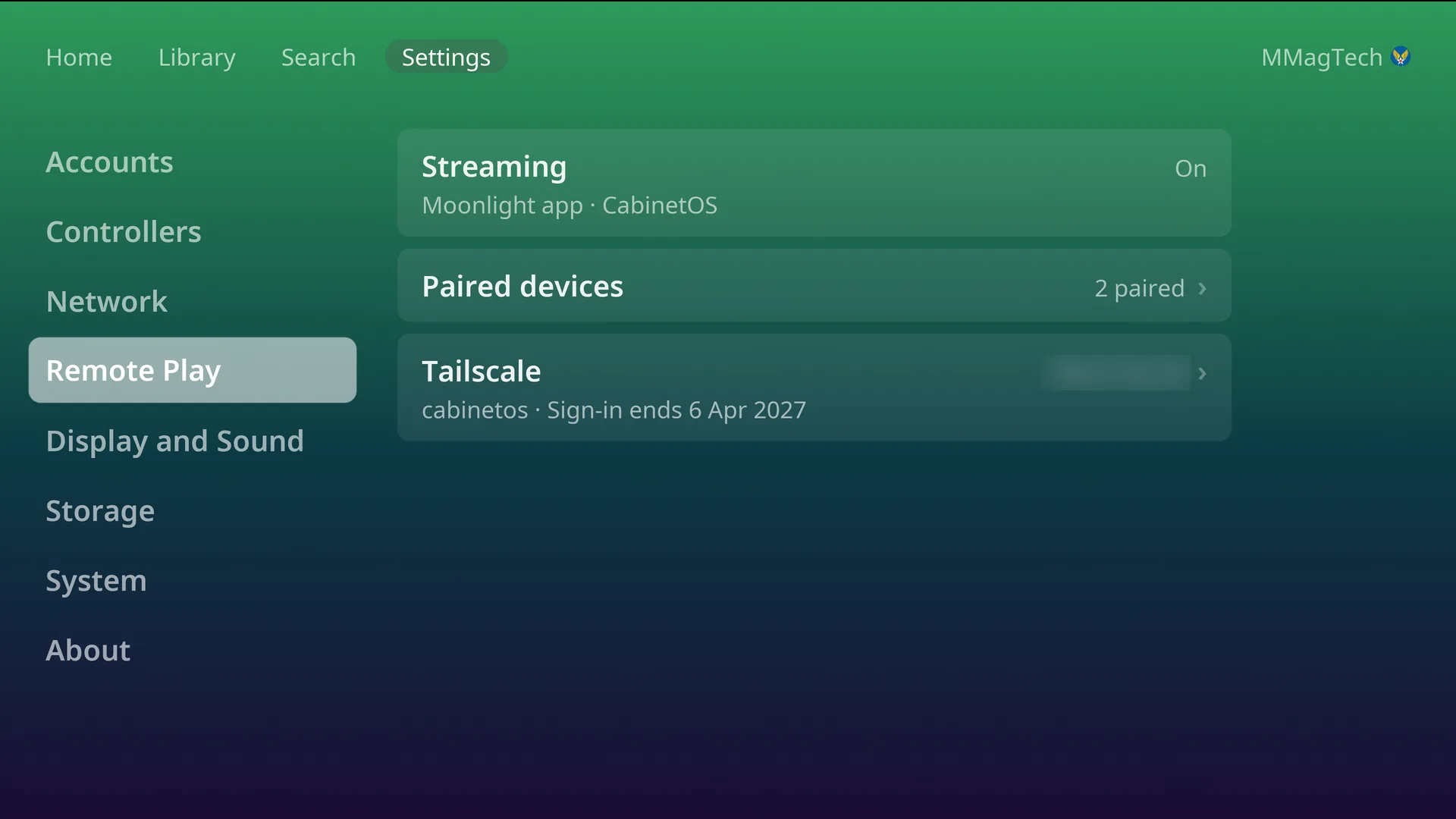
Settings, Remote Play, Streaming (the PIN, if one is set). The row then reads Moonlight app · CabinetOS: CabinetOS is the name Moonlight shows.
Pair a device
- Install Moonlight on the device, on the same network as the console.
- In Moonlight, pick CabinetOS (or add it by the console’s address, from Settings, Network). Moonlight shows four digits.
- The TV opens a number pad by itself: Pair a device. Enter the code from Moonlight. Type the four digits.
- Name the device on the TV’s keyboard. Paired with ….
Paired devices lists them; press one to rename or remove it. Pairing does not open while a game is being played on the TV.
While a device is streaming
- The device takes over the players, and a game being played on the TV pauses.
- Hold Select on the device’s controller for the console’s pause menu, in every game.
- The Remote Play section in Settings is greyed, marked In use.
- Wii games that need a Wii Remote cannot be played from a device.
- The quality (resolution, frame rate, codec) is set in Moonlight, not on the console.
Away from home: Tailscale
Tailscale lets a device reach the console from anywhere without opening your router.
- Install Tailscale on the device and sign in.
- Settings, Remote Play, Tailscale (Streaming must be on). Scan the QR code with the device: Use the Tailscale account your phone is signed in to.
- The row shows the console’s Tailscale address. Add that address in Moonlight.
Only Remote Play’s ports are open over Tailscale. The sign-in lasts until the date shown under the row; Sign in again appears near the end.
Streaming Steam
Steam’s Big Picture streams too, after Switch to Steam (see Steam). Steam’s screen is in HDR: turn on HDR in Moonlight’s settings, or Steam looks washed out on the device.
Something wrong or missing here? See this page on GitHub or open an issue.